What should your menu contain?
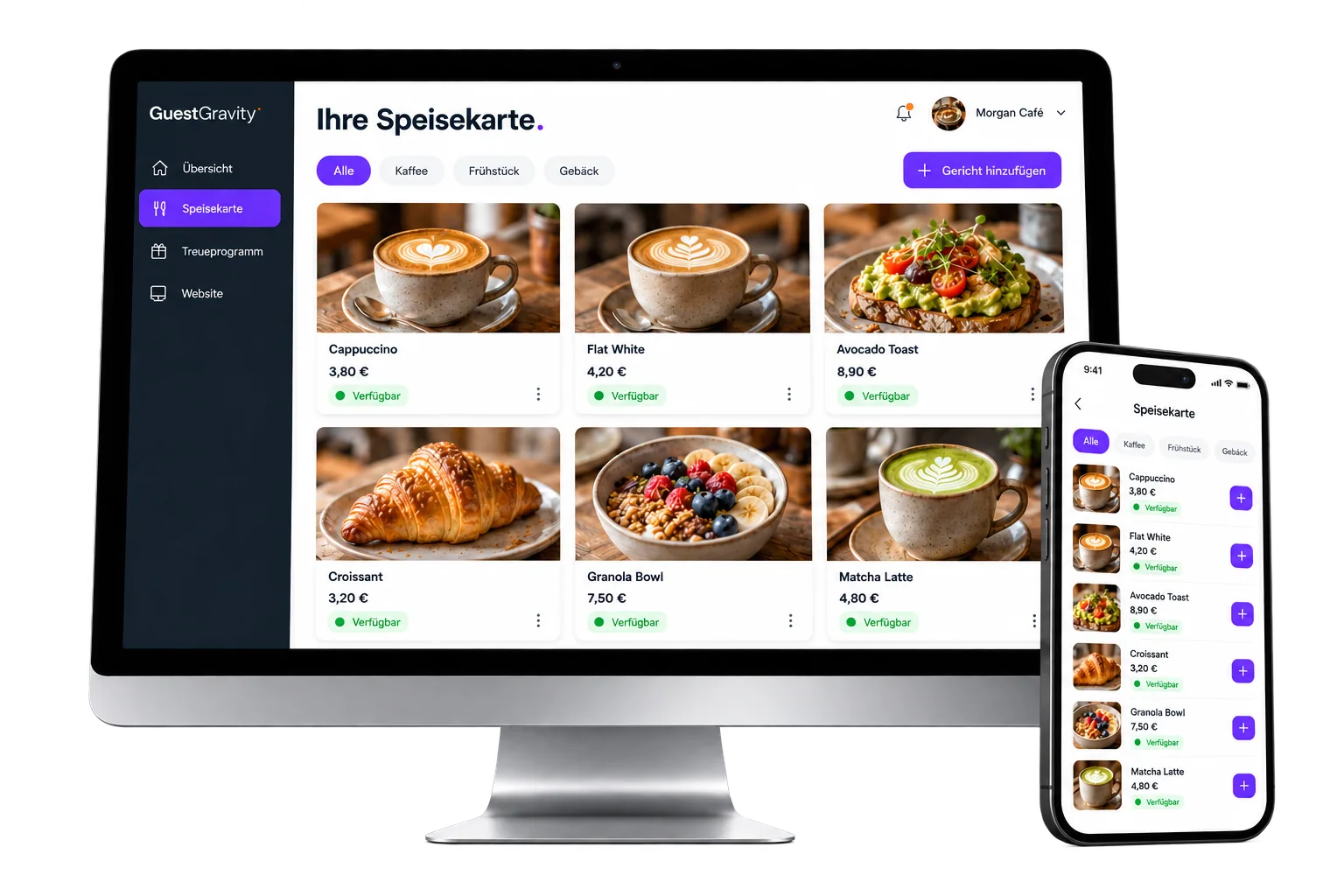
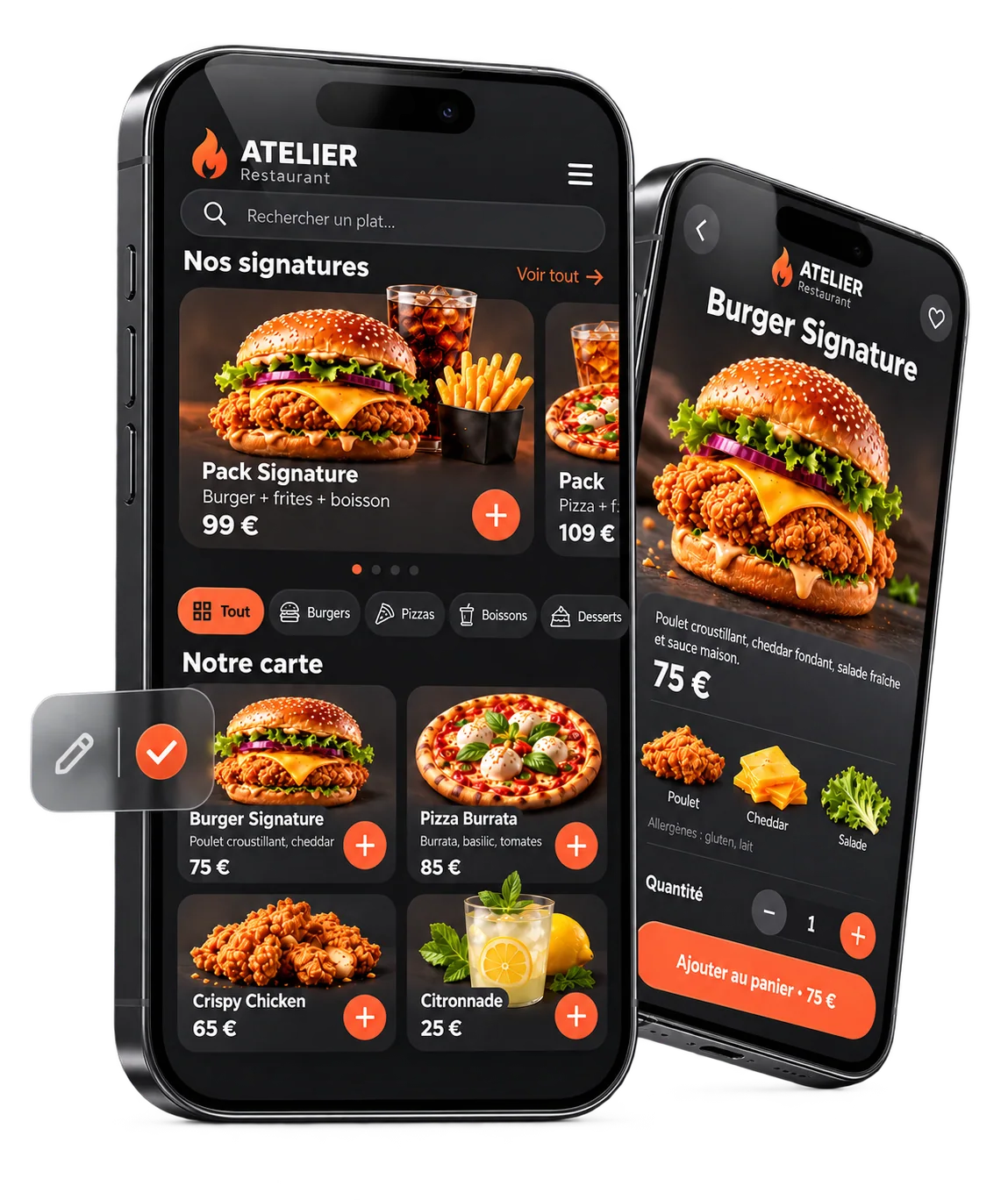
Organise dishes into familiar categories. Write names and descriptions that help guests understand the offer without asking. Use accurate photos and check prices and availability before publishing. A small, well-maintained menu is more useful than a long, outdated list.
- Categories, dishes and concise descriptions.
- Current prices and accurate product pictures.
- A stable menu link for your website, QR code and NFC card.
QR code, NFC or PDF?
QR codes and NFC cards are ways to open a destination. Both can point to the same menu link. A PDF is a file format; a PDF designed for print may require zooming on a phone. Test how easily guests can read categories, descriptions and prices on a real device.
Prepare for your first service
Start with a manageable selection and test it during service. Ask one person to change a price and another to open the result as a guest. Place the access point visibly, and keep a practical alternative for customers who cannot or prefer not to use their phones.
Connect pictures, service and insights
The image studio can enhance phone pictures for your menu. Menu analytics show digital visits, product views and cart activity. Use these signals to review your offer and presentation; they are not a complete till system.
Common questions
How do I create a digital restaurant menu?
Add categories and dishes, enter descriptions, prices and suitable photos, check the preview and share the published link through a QR code or NFC card.
Do restaurant guests need an app?
The menu opens in a browser. Guests do not need a GuestGravity app to view the menu.
Can guests order through the menu?
In the configured table-service workflow, guests send their selection as a table request. Staff receive an alert and confirm it. This does not automatically include online payments.
Can I update dishes later?
Yes. With your selected menu module, you manage dishes, pictures, prices and availability. After saving, check the published guest view.